# Google Cloud User Deployment Guide

## Introduction <a href="#toc417629842" id="toc417629842"></a>

This is a Getting Started guide supplementary to the reference documentation of Composable Agentic Platform (CAP), specifically to help Google Cloud customers with installation, setup, and production considerations when deploying CAP to Google Cloud Platform (GCP) from the available TomorrowX solutions listed on [Google Marketplace](https://console.cloud.google.com/marketplace/browse?filter=partner:TomorrowX). If you are new to CAP, an introduction to CAP can be found [here](https://docs.tomorrowx.com/cap/product-reference/introduction).\
\
You can find the TomorrowX partner profile in the [Google Cloud Partner directory](https://cloud.google.com/find-a-partner/partner/tomorrowx).\
\
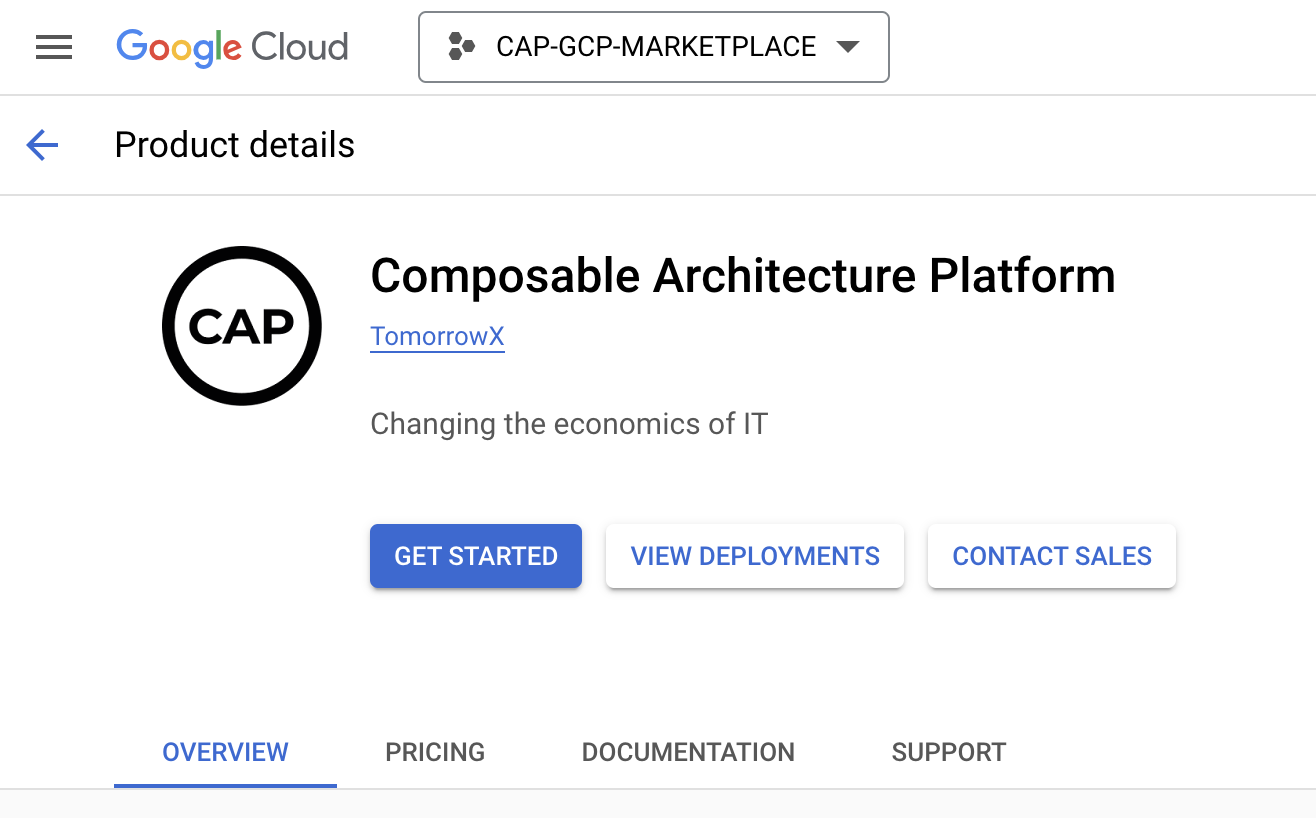
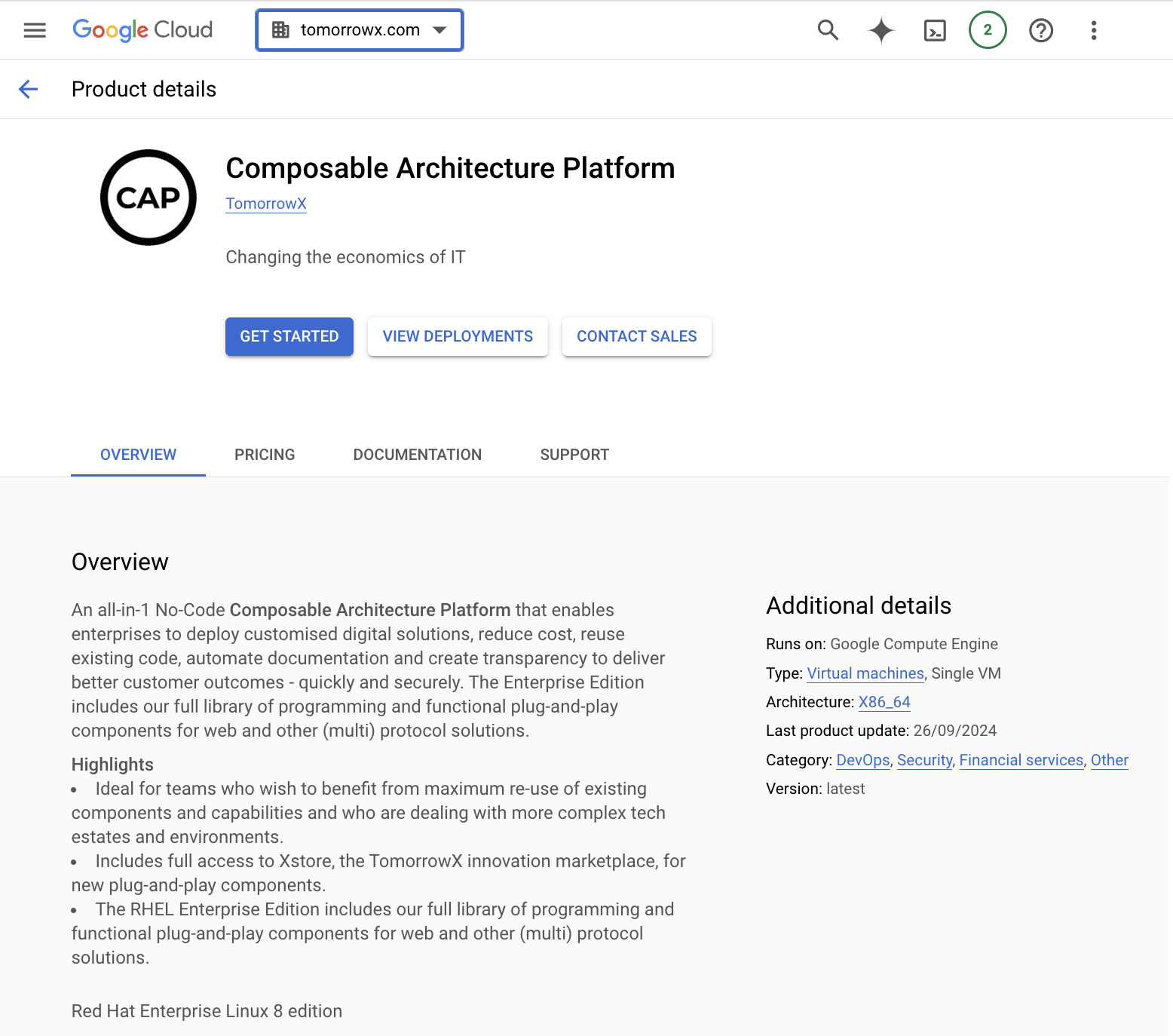
For first time users click the GET STARTED button on the [CAP Product Details page](https://console.cloud.google.com/marketplace/product/tomorrowx-public/gcp-cap-rhel).\\

<div align="right"><figure><img src="https://2423451286-files.gitbook.io/~/files/v0/b/gitbook-x-prod.appspot.com/o/spaces%2F42mDa58RoaDxb6t8mbaI%2Fuploads%2Fgit-blob-602c97f6d2e8035c459003c764bc8144f696ea0d%2FGCP-CAP-getting-started.png?alt=media" alt=""><figcaption><p><a href="https://console.cloud.google.com/marketplace/browse?filter=partner:TomorrowX">Google Cloud Marketplace Solutions by </a>TomorrowX</p></figcaption></figure></div>

## Installing the CAP Virtual Machine (VM) <a href="#installing-the-nginx-plus-vm" id="installing-the-nginx-plus-vm"></a>

### Knowledge of Googe Cloud services <a href="#toc107424449" id="toc107424449"></a>

:ballot\_box\_with\_check: [Google Cloud Compute Engine](https://cloud.google.com/products/compute) - required\
:ballot\_box\_with\_check: [Google Cloud Marketplace](https://cloud.google.com/marketplace) – required

### Knowledge of Red Hat Enterprise Linux <a href="#toc107424448" id="toc107424448"></a>

At the time of writing, this guide has been created with an installation using a Red Hat Enterprise Linux (8.10) Google Cloud public image. Basic Linux commands are required to connect to your instance and perform operational tasks such as server updates, restarts, and SSH connection. Google Cloud's [Red Hat Enterprise Linux FAQ](https://cloud.google.com/compute/docs/images/premium/rhel-faq) page covers frequently asked questions around support, migration and licenses when running Red Hat Enterprise Linux (RHEL) on Google Compute Engine.\
\
Optional suggested reading: [Installing on Red Hat Enterprise Linux](https://docs.tomorrowx.com/cap/product-reference/installation-and-configuration/installing-on-red-hat-enterprise-linux)

#### Installed Java (JDK) Version

To determine the installed JDK version, SSH connect to the VM instance and use the command\
`java -version` You may need to set `JAVA_HOME`\
\
Example:

```shell-session
# export JAVA_HOME=/usr/lib/jvm/jdk-19 && export PATH=$JAVA_HOME/bin:$PATH
# java -version
openjdk version "19" 2022-09-20
OpenJDK Runtime Environment (build 19+36-2238)
OpenJDK 64-Bit Server VM (build 19+36-2238, mixed mode, sharing)
```

## Architectural Design <a href="#toc107424450" id="toc107424450"></a>

### Simple Solution Design (Marketplace default) <a href="#toc107424451" id="toc107424451"></a>

The CAP installation is shipped as single VM instance combining the console and server components. This ensures all available architectural deployment options can be considered as and when solutions are created and released through the development lifecycle into production. The instance may need to connect to various on-premise, hybrid, or external integration points (e.g., databases, CSV data files for processing, or 3rd party API services). Refer to the section [Architectural Scenarios](https://docs.tomorrowx.com/cap/product-reference/architectural-scenarios) for more details for architecting these scenarios.

* [Command and control](https://docs.tomorrowx.com/cap/product-reference/architectural-scenarios/command-and-control)
* [Simplest form](https://docs.tomorrowx.com/cap/product-reference/architectural-scenarios/simplest-form)
* [Servlet Filter](https://docs.tomorrowx.com/cap/product-reference/architectural-scenarios/servlet-filter)
* [API transformation](https://docs.tomorrowx.com/cap/product-reference/architectural-scenarios/api-transformation)
* [Active web proxy](https://docs.tomorrowx.com/cap/product-reference/architectural-scenarios/active-web-proxy)
* [Web application server](https://docs.tomorrowx.com/cap/product-reference/architectural-scenarios/web-application-server)
* [Active proxy with content](https://docs.tomorrowx.com/cap/product-reference/architectural-scenarios/active-proxy-with-content)
* [Mobile application server](https://docs.tomorrowx.com/cap/product-reference/architectural-scenarios/mobile-application-server)
* [Asynchronous multi-protocol](https://docs.tomorrowx.com/cap/product-reference/architectural-scenarios/asynchronous-multi-protocol)
* [Data loss prevention architecture](https://docs.tomorrowx.com/cap/product-reference/architectural-scenarios/data-loss-prevention-architecture)

In this guide we are referencing the initial installation components as made available from the launch directly from Google Cloud marketplace. Using this solution deployment you will be free to adapt the architectural scenario for scale and most appropriate business use case.

### High Availability Solution Example <a href="#toc107424452" id="toc107424452"></a>

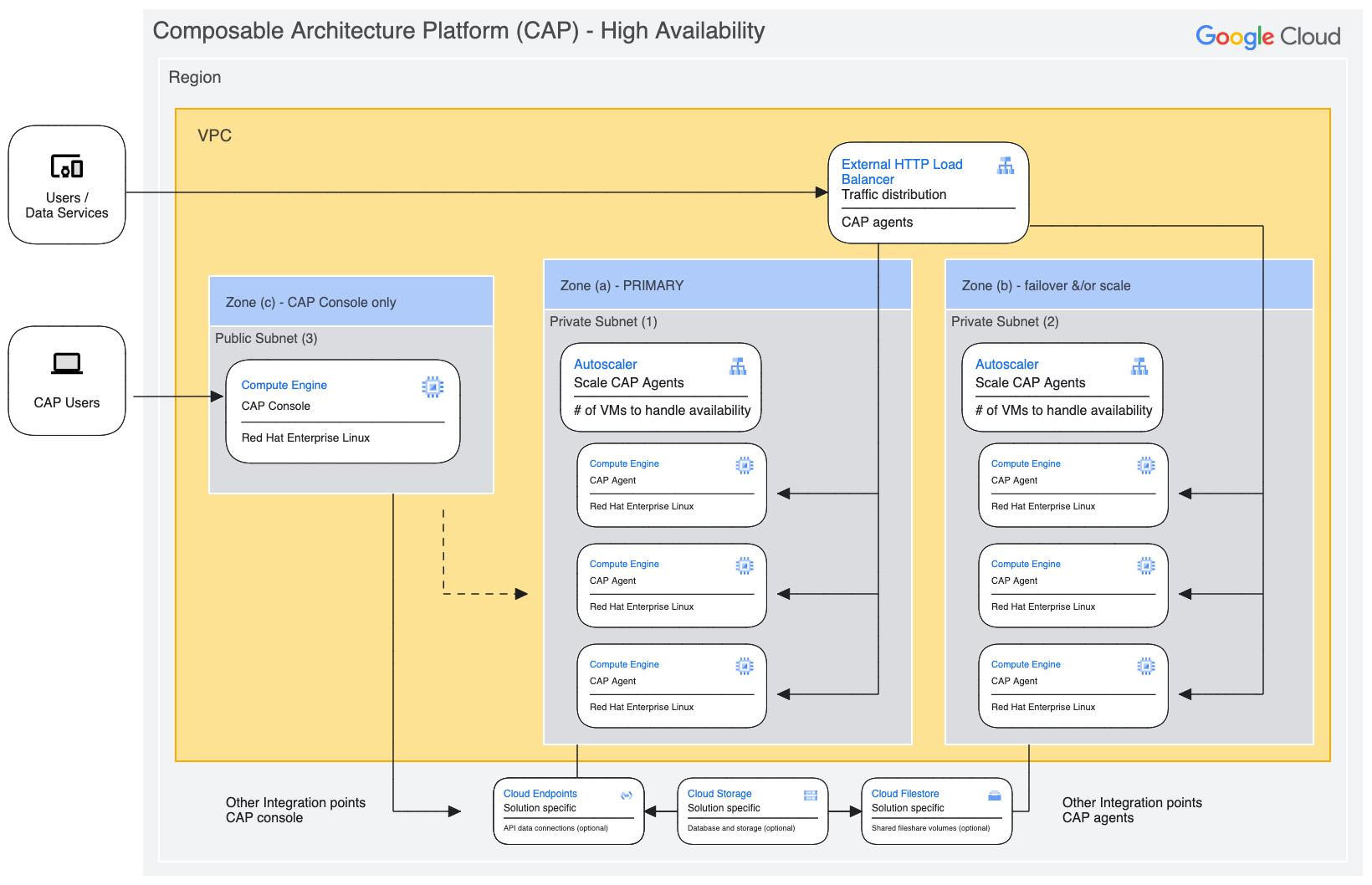
For a better security posture, we provide a sample high availability example for high availability deployed within private subnet behind a load balancer for failover and administration access whereby the CAP Console instance is physically separated to Runtime (n) number of CAP Agents to be auto-scaled relative to anticipated traffic load, and availability requirements.

<figure><img src="https://2423451286-files.gitbook.io/~/files/v0/b/gitbook-x-prod.appspot.com/o/spaces%2F42mDa58RoaDxb6t8mbaI%2Fuploads%2Fgit-blob-9a65ca5838142dea31b9df5731a7645b097f242a%2FCAP-GCP-2024-02-12-1546.png?alt=media" alt=""><figcaption><p>CAP - High Availability Solution Design</p></figcaption></figure>

For any advanced, or new scenarios not listed here, contact us directly for guidance as detailed on the [Support](https://console.cloud.google.com/marketplace/product/tomorrowx-public/gcp-cap-rhel) tab of [Google Cloud Marketplace product details listing](https://console.cloud.google.com/marketplace/product/tomorrowx-public/gcp-cap-rhel).

## Getting started

### Select a resource

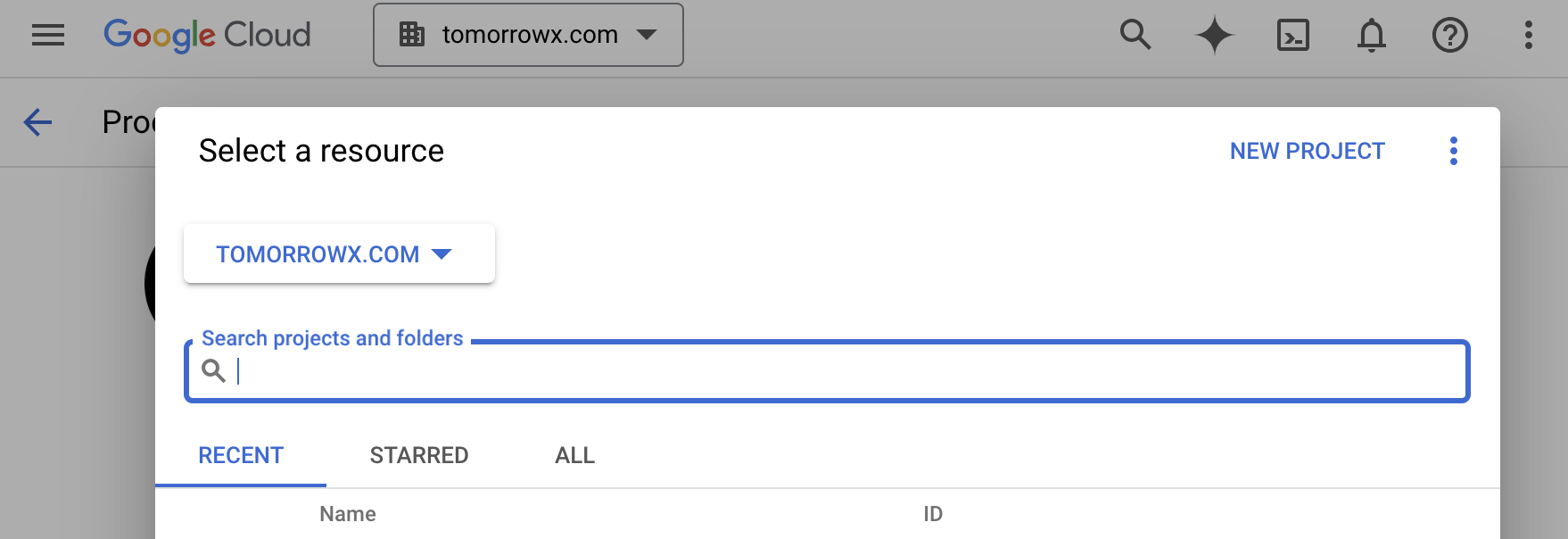
Either select an **existing project** resource in your GCP organisation, or create a **new project** for the CAP installation. From the dropdown organisation field in the top banner you are prompted to select an existing resource as follows.

<figure><img src="https://2423451286-files.gitbook.io/~/files/v0/b/gitbook-x-prod.appspot.com/o/spaces%2F42mDa58RoaDxb6t8mbaI%2Fuploads%2Fgit-blob-8c897b6874b57b0eac9892f079af2451dd66a7a4%2FGCP-new-project.png?alt=media" alt=""><figcaption><p>Select a project resource</p></figcaption></figure>

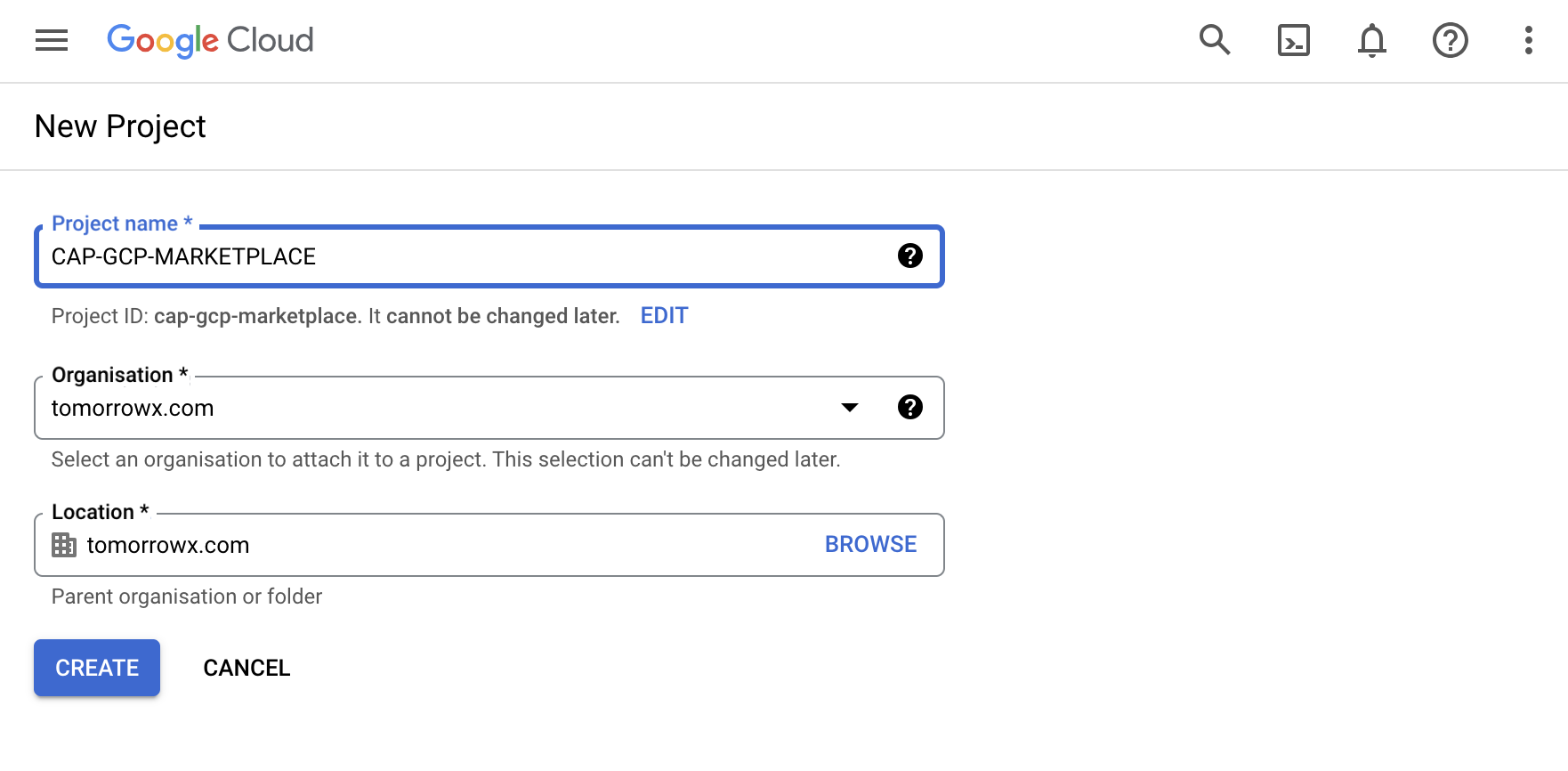
Alternatively you can create a new project by selecting the NEW PROJECT option in the top right where you'll be prompted to define the project name, organisation, and location.

<figure><img src="https://2423451286-files.gitbook.io/~/files/v0/b/gitbook-x-prod.appspot.com/o/spaces%2F42mDa58RoaDxb6t8mbaI%2Fuploads%2Fgit-blob-160d444ea5466ded11098f331e59d2fd4c71b60e%2FGCP-create-new%20project.png?alt=media" alt=""><figcaption><p>Create a new project</p></figcaption></figure>

When the new project has been created, it will shortly show as an available resource to select in the banner dropdown select field. You can then proceed to click the get started button.

<div align="left"><figure><img src="https://2423451286-files.gitbook.io/~/files/v0/b/gitbook-x-prod.appspot.com/o/spaces%2F42mDa58RoaDxb6t8mbaI%2Fuploads%2Fgit-blob-e7090ed2177c312d423bc082e6d91f09e053db34%2FGCP-created.png?alt=media" alt="" width="563"><figcaption></figcaption></figure></div>

### Agree to CAP terms

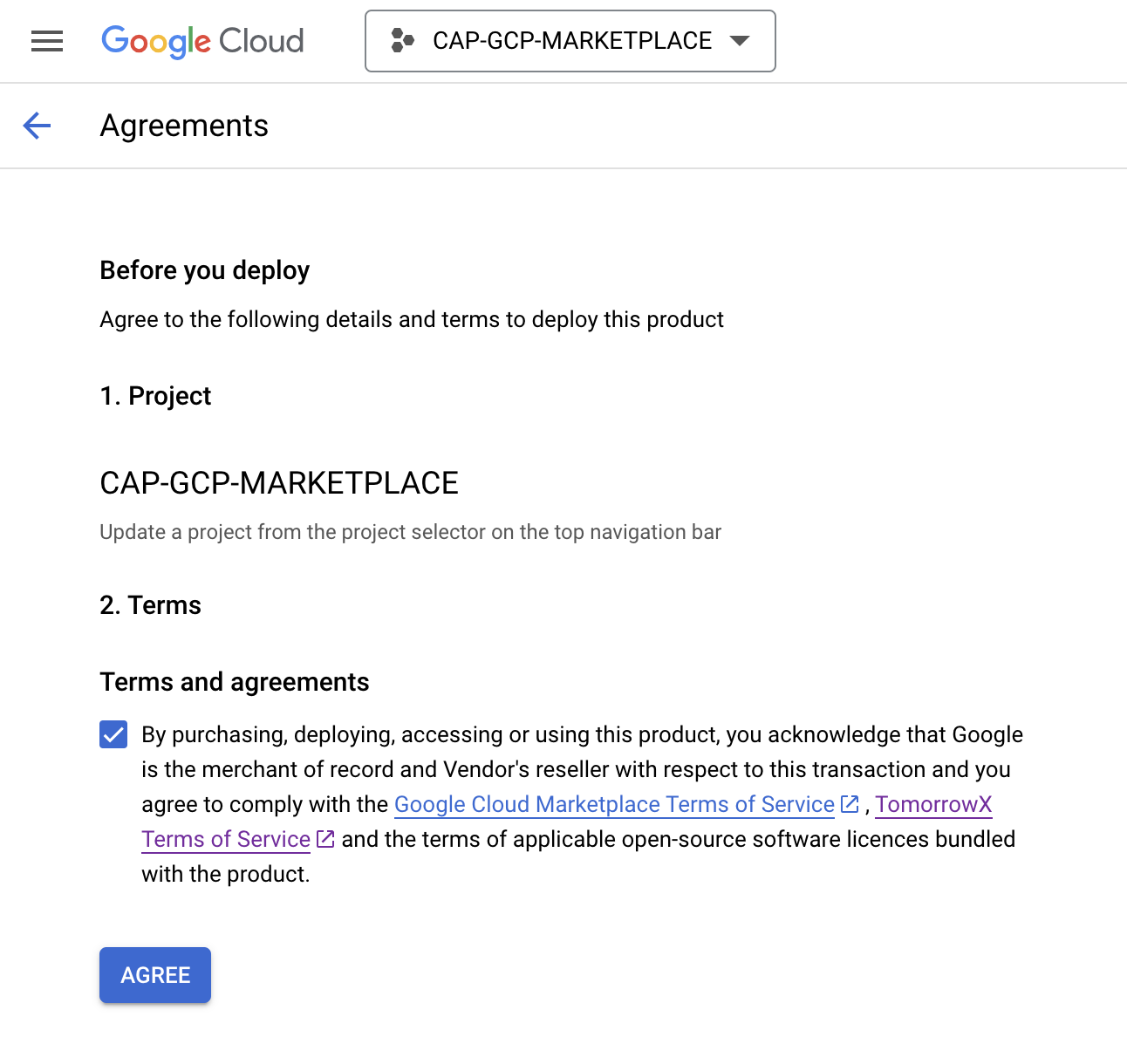
Before you deploy, you must check the agree :ballot\_box\_with\_check: to the CAP details and terms to deploy the CAP product, and AGREE.

<figure><img src="https://2423451286-files.gitbook.io/~/files/v0/b/gitbook-x-prod.appspot.com/o/spaces%2F42mDa58RoaDxb6t8mbaI%2Fuploads%2Fgit-blob-69acf3b1b25a23120e6db3843522c2a562abd1e4%2FGCP-CAP-agreements.png?alt=media" alt="" width="563"><figcaption><p>Agree to CAP terms</p></figcaption></figure>

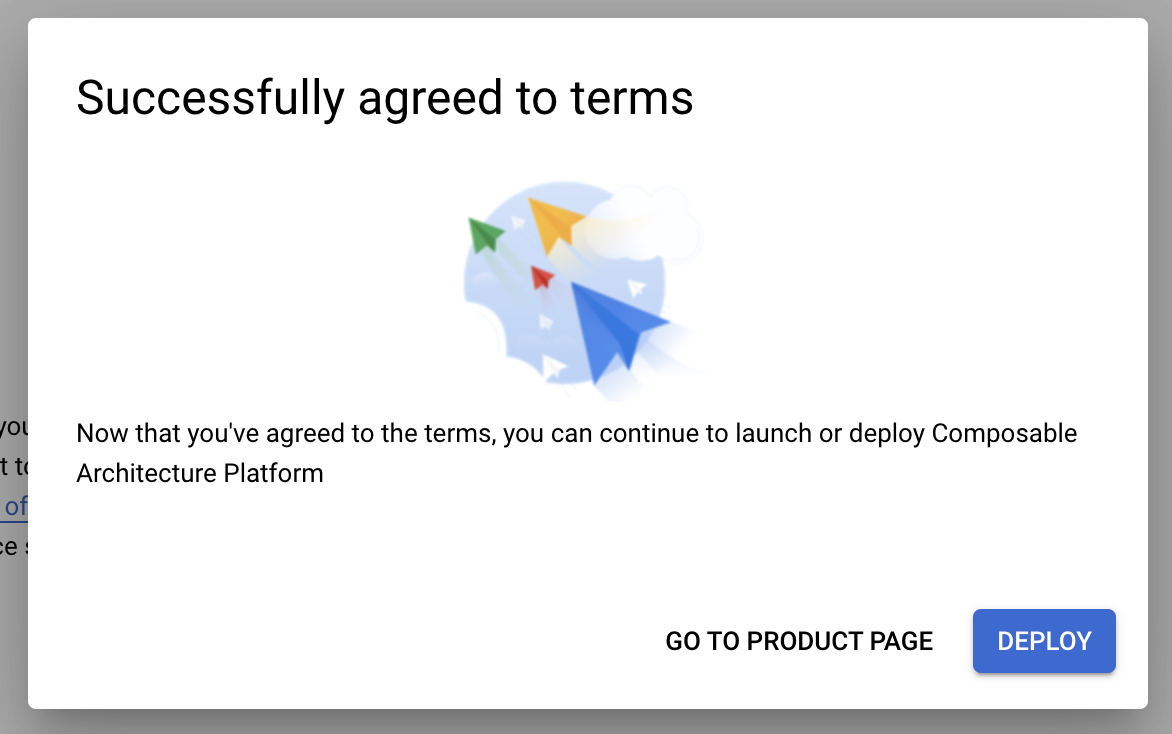
Now that you've agreed to the terms, you can continue to launch or deploy

<figure><img src="https://2423451286-files.gitbook.io/~/files/v0/b/gitbook-x-prod.appspot.com/o/spaces%2F42mDa58RoaDxb6t8mbaI%2Fuploads%2Fgit-blob-81f6064e0162b6ae73d59266e545c66013c6b944%2FGCP%20terms%20agree.png?alt=media" alt="" width="563"><figcaption><p>Successfully agreed to terms</p></figcaption></figure>

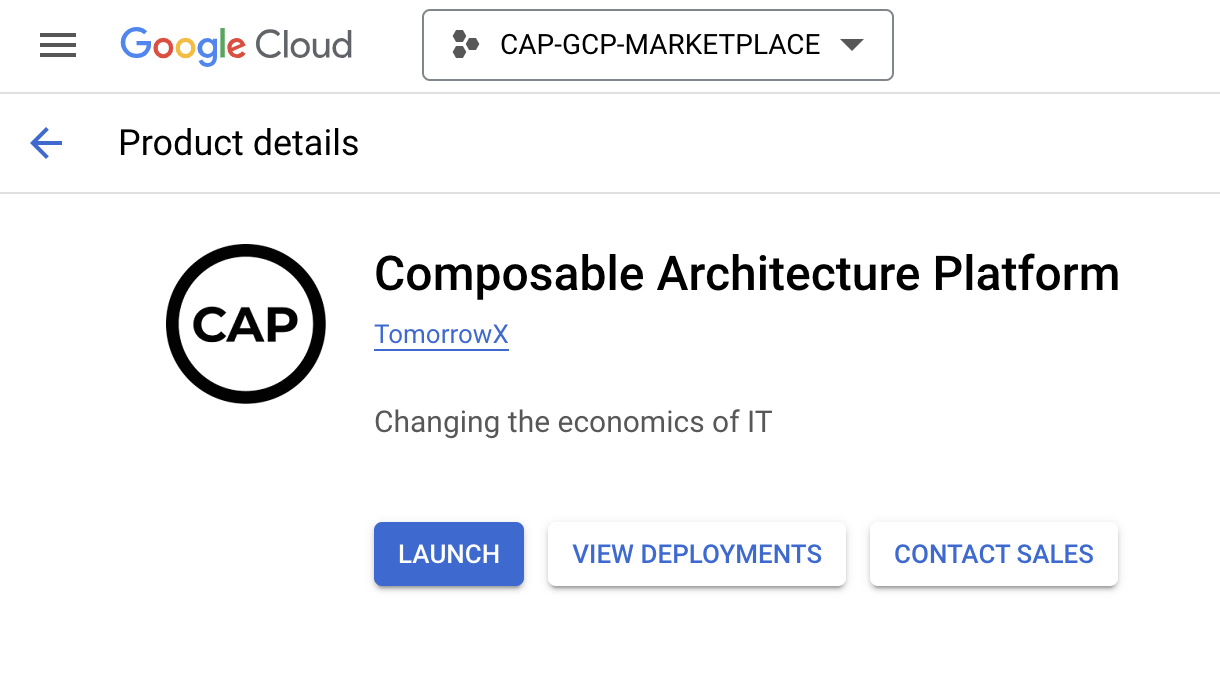
Once terms have been agreed the Getting Started button is replaced, and you are now ready to launch and a deploy CAP VM.

<figure><img src="https://2423451286-files.gitbook.io/~/files/v0/b/gitbook-x-prod.appspot.com/o/spaces%2F42mDa58RoaDxb6t8mbaI%2Fuploads%2Fgit-blob-1625fc6dc653b16b45144c128ae62d704342f026%2FGCP%20launch.png?alt=media" alt="" width="563"><figcaption></figcaption></figure>

## Launch <a href="#toc435709304" id="toc435709304"></a>

### Enable required APIs

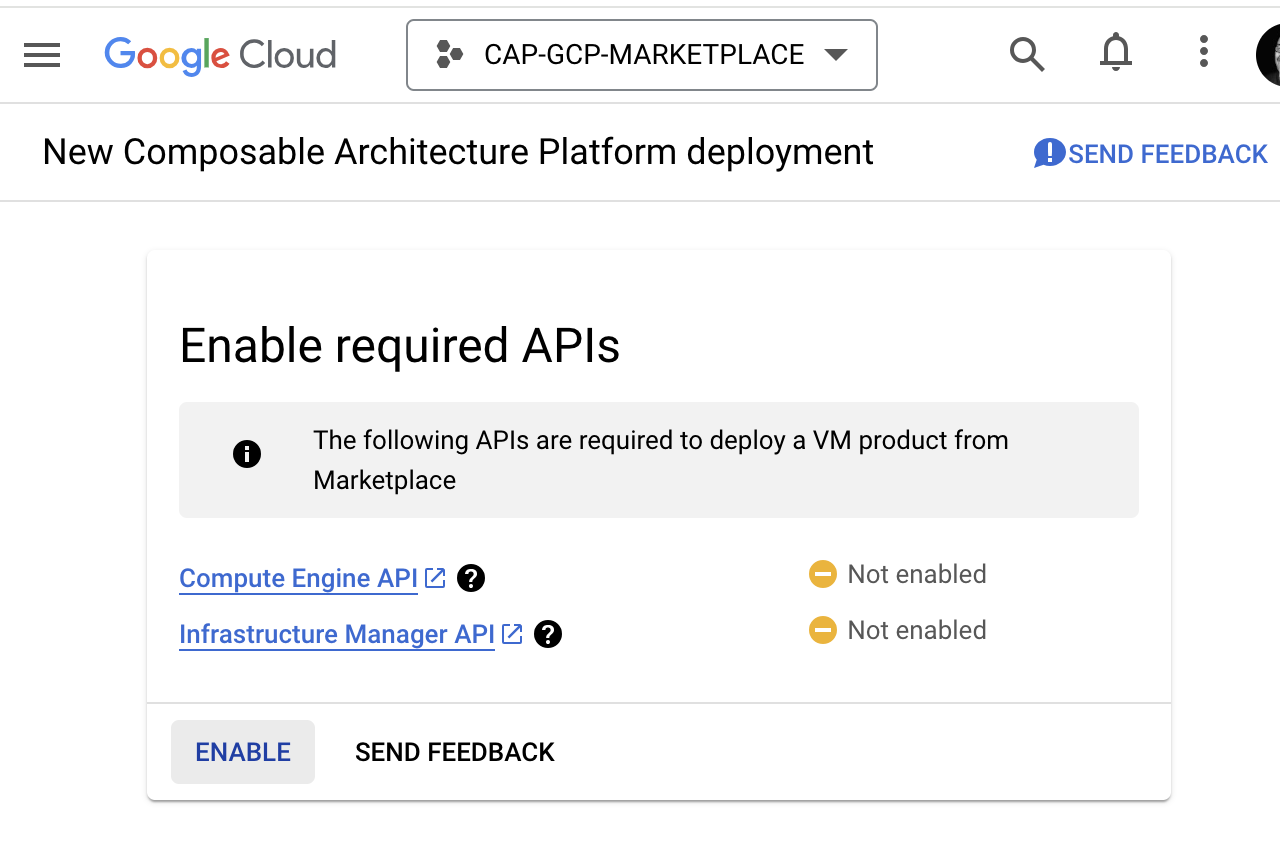
When you press launch for a new project, you will be prompted to enable following APIs required to deploy CAP VM product from Marketplace. Click ENABLE, and be patient for a few minutes whilst these services are enabled.

<figure><img src="https://2423451286-files.gitbook.io/~/files/v0/b/gitbook-x-prod.appspot.com/o/spaces%2F42mDa58RoaDxb6t8mbaI%2Fuploads%2Fgit-blob-5cf75d9df05b416d77699d0c4b679e0c22fab83f%2Fgcp%20enable%20apis.png?alt=media" alt="" width="563"><figcaption><p>Enable required APIs</p></figcaption></figure>

## Deploy <a href="#toc107424450" id="toc107424450"></a>

### Create new deployment service account <a href="#toc107424450" id="toc107424450"></a>

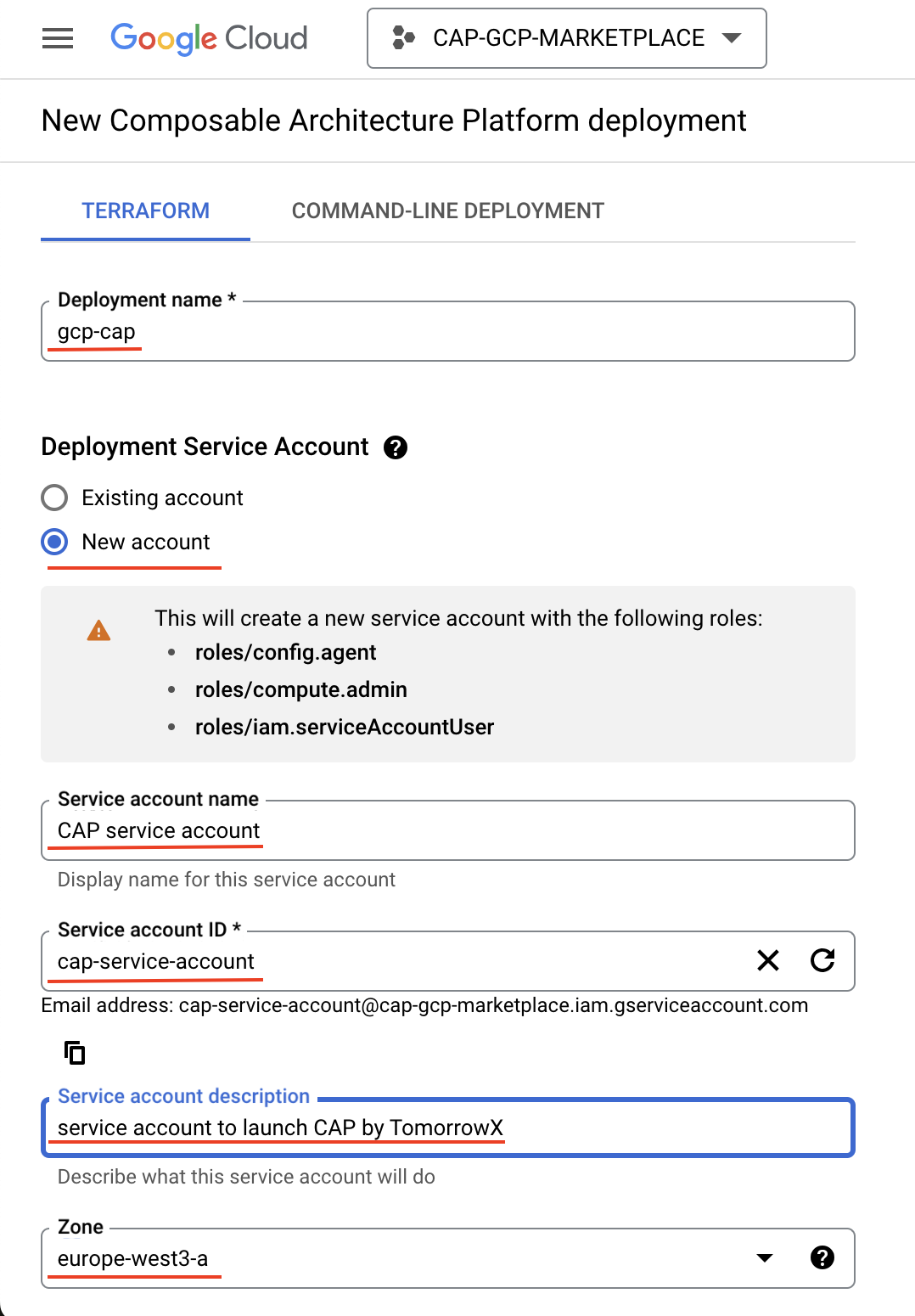
After successfully enabling APIs you will be presented with the deploy page, for a new project you will be required to create a new service account to run the deploy processes for CAP. A new service account will be created with the following roles:

```
roles/config.agent
roles/compute.admin
roles/iam.serviceAccountUser
```

Complete the required fields including selecting the compute zone where the CAP VM will be deployed.

<figure><img src="https://2423451286-files.gitbook.io/~/files/v0/b/gitbook-x-prod.appspot.com/o/spaces%2F42mDa58RoaDxb6t8mbaI%2Fuploads%2Fgit-blob-da6cc4248f4c56b09f8c2e1d5896c73a37ce07ce%2Fgcp-deploy.png?alt=media" alt="" width="563"><figcaption><p>Deploy create a new service account</p></figcaption></figure>

### Machine Type & Boot Disk <a href="#toc107424453" id="toc107424453"></a>

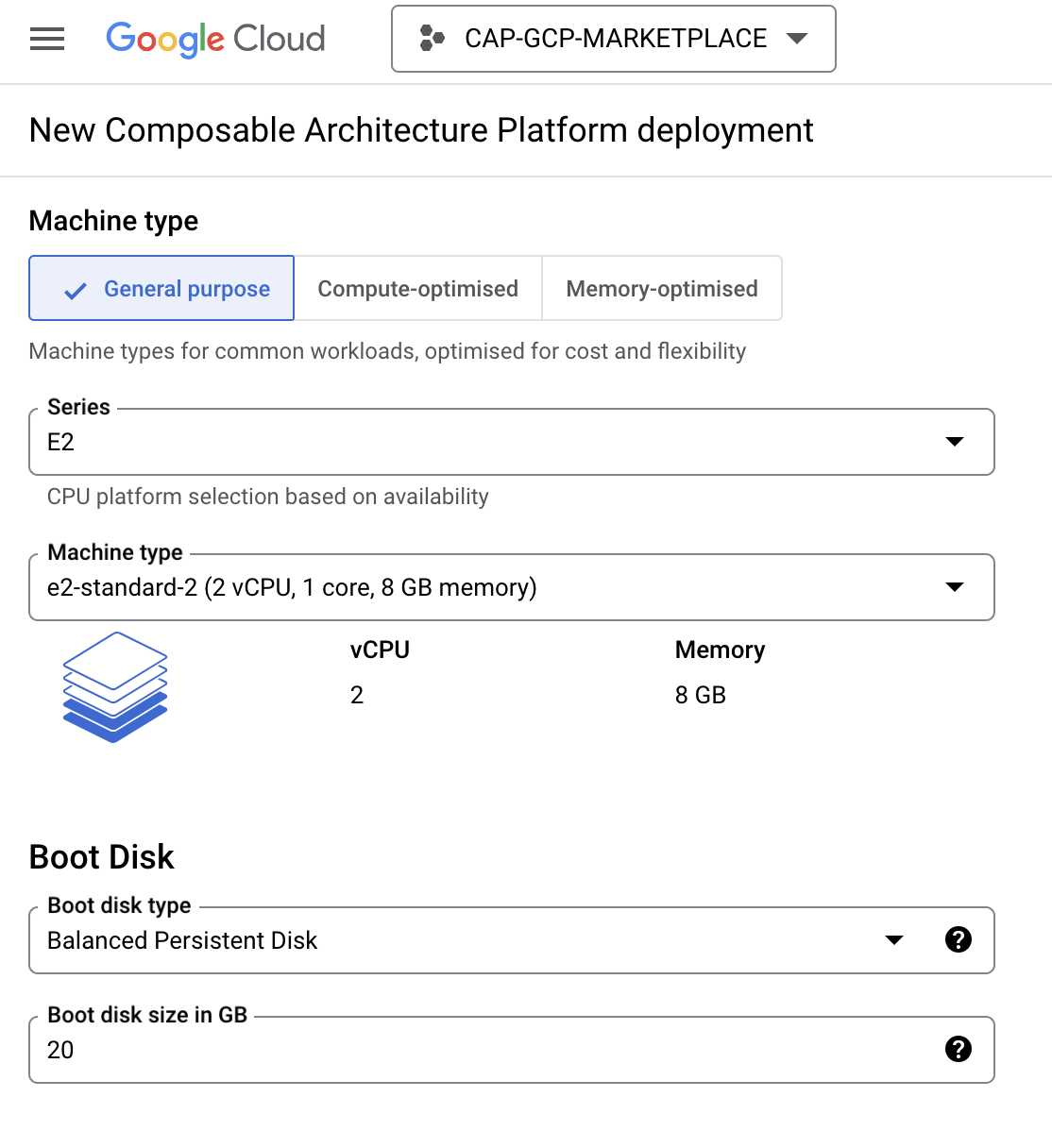
Scroll further down the deploy page, and a General Purpose E2-Standard VM is pre-selected as default (2vCPU 8GB Memory). This selection is ideal for a first time deployment to run the CAP Console and Proxy Servers on this single VM.\
\
Boot Disk size of 20GB is configurable depending on how much data you are planning to store on this single VM.

<figure><img src="https://2423451286-files.gitbook.io/~/files/v0/b/gitbook-x-prod.appspot.com/o/spaces%2F42mDa58RoaDxb6t8mbaI%2Fuploads%2Fgit-blob-de2f4338fb5d207fb5a95dd2d1ba28ac2a5970ea%2Fgcp%20machine%20disk.png?alt=media" alt="" width="563"><figcaption><p>Machine type &#x26; Boot disk size</p></figcaption></figure>

### Network Configuration <a href="#toc107424453" id="toc107424453"></a>

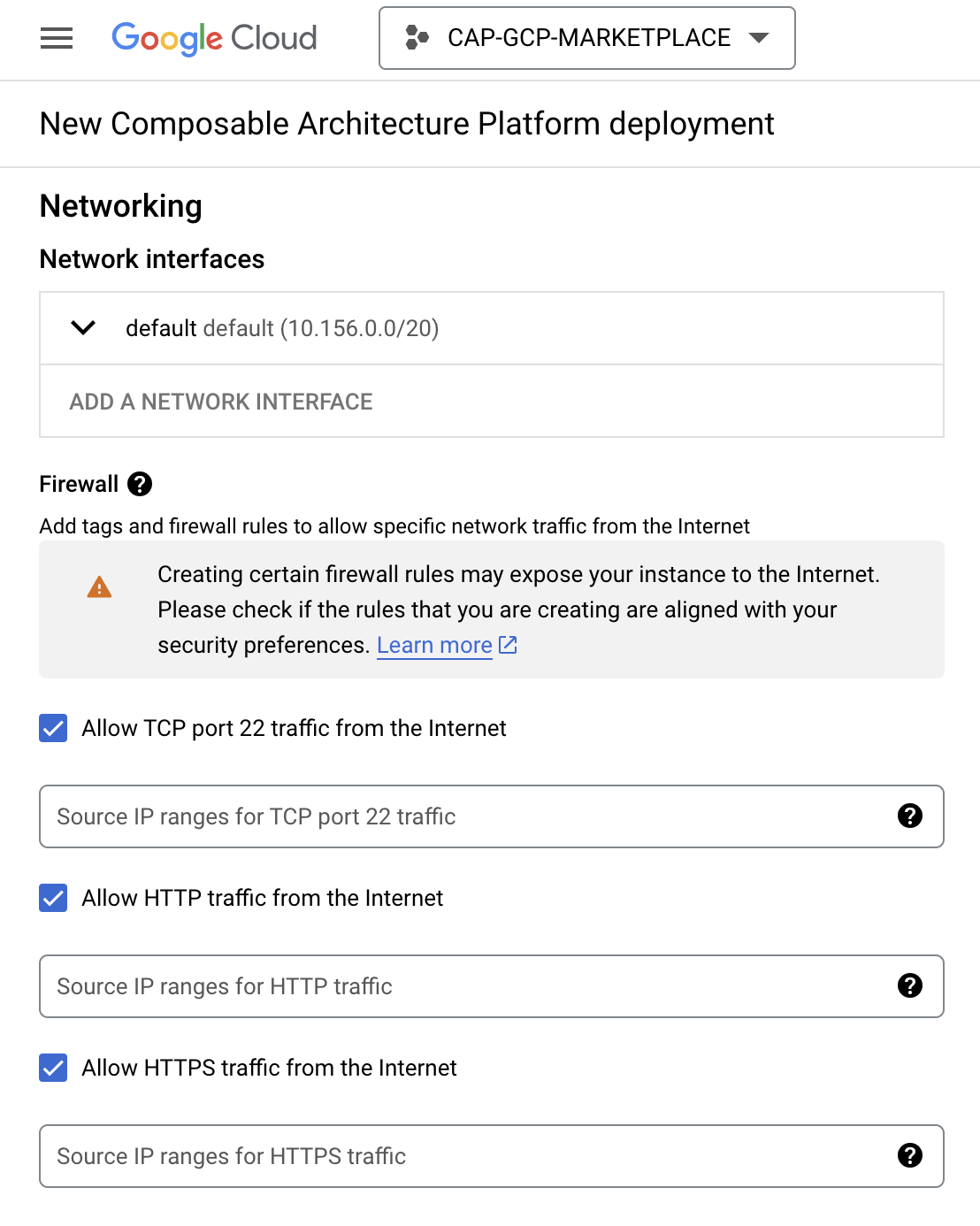
The default networking confguration will create firewall rules to accept the following traffic.

:ballot\_box\_with\_check: Allow TCP port 22 traffic from the Internet (for SSH connection)\
:ballot\_box\_with\_check: Allow HTTP traffic from the Internet (port 80)\
:ballot\_box\_with\_check: Allow HTTPS traffic from the Internet (port 443 - note SSL certificate is not installed)

<figure><img src="https://2423451286-files.gitbook.io/~/files/v0/b/gitbook-x-prod.appspot.com/o/spaces%2F42mDa58RoaDxb6t8mbaI%2Fuploads%2Fgit-blob-f3c20025e8d295985bca0bcc6401f16544f7bb67%2Fgcp%20networking.png?alt=media" alt="" width="563"><figcaption><p>Default networking configuration</p></figcaption></figure>

{% hint style="info" %}
If you are planning to use the built in proxy (BIP) [browser proxy](https://docs.tomorrowx.com/cap/concepts-and-terminology/proxies#browser-proxy) then a new firewall rule to allow TCP port 8080 traffic from the test client browser will additionally need to be created once the VM instance is running. This is to avoid security exposures for the default deploy configuration.
{% endhint %}

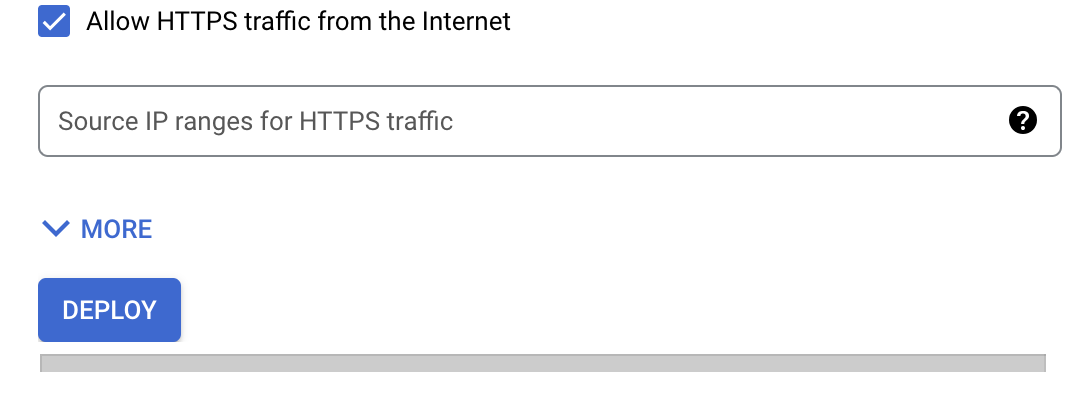
Once the configuration has been defined for your selections, go ahead and click DEPLOY at the bottom of the page.

<figure><img src="https://2423451286-files.gitbook.io/~/files/v0/b/gitbook-x-prod.appspot.com/o/spaces%2F42mDa58RoaDxb6t8mbaI%2Fuploads%2Fgit-blob-736af012cb89bc657804bdb90dabe65aed2ddafc%2Fgcp%20deploy%20button.png?alt=media" alt="" width="563"><figcaption></figcaption></figure>

## Successful Deployment <a href="#toc107424454" id="toc107424454"></a>

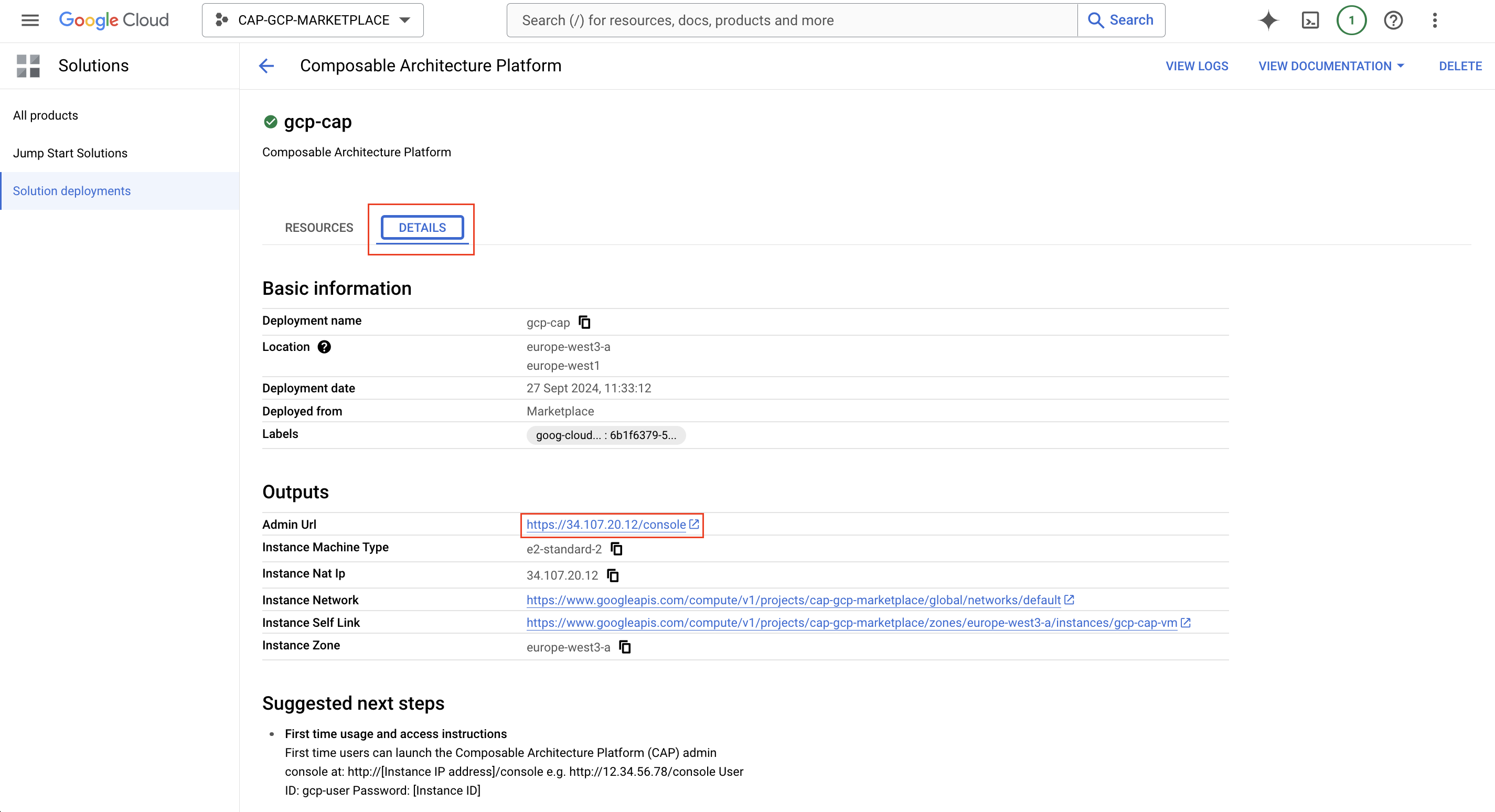
Once deployed, select the DETAILS tab to access the Admin Url which you can access via a browser.

<figure><img src="https://2423451286-files.gitbook.io/~/files/v0/b/gitbook-x-prod.appspot.com/o/spaces%2F42mDa58RoaDxb6t8mbaI%2Fuploads%2Fgit-blob-21498075cbcf6e2567af652e386f4db2f1f5a4ad%2Fgcp%20deployments.png?alt=media" alt=""><figcaption></figcaption></figure>

### Usage Instructions <a href="#toc107424454" id="toc107424454"></a>

### Console Login

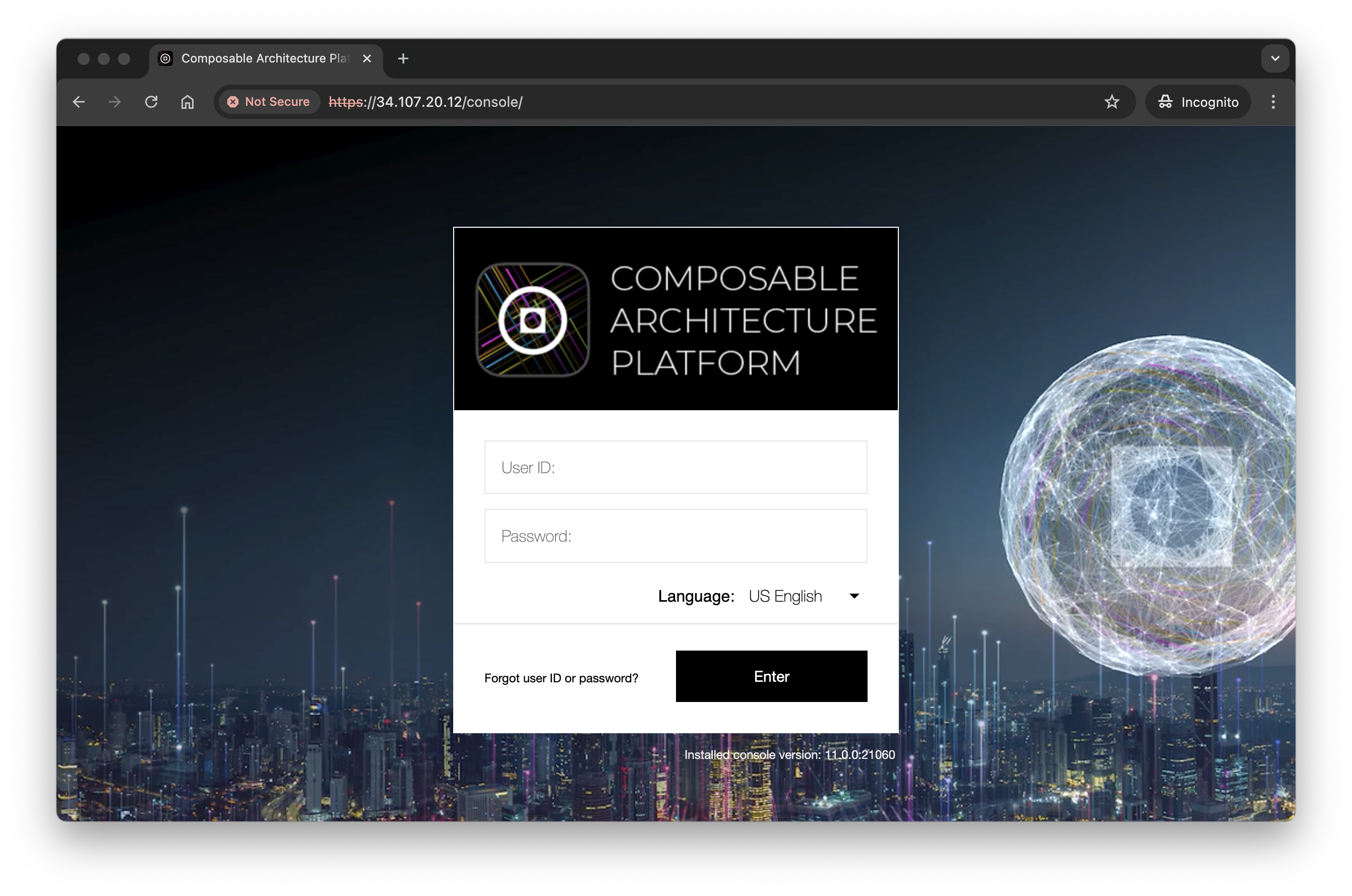
First time users can launch the console from the Admin Url as detailed on the Google Marketplace Solution Deployments Details page at https\://{Instance IP/DNS}/console e.g. `https://12.34.56.78/console`

<figure><img src="https://2423451286-files.gitbook.io/~/files/v0/b/gitbook-x-prod.appspot.com/o/spaces%2F42mDa58RoaDxb6t8mbaI%2Fuploads%2Fgit-blob-8354b18558f4f63683fa32d0f2c997692e86140a%2FGCP%20console.png?alt=media" alt=""><figcaption><p>Console Login</p></figcaption></figure>

```
User ID: gcp-user
Password: [Instance ID]
```

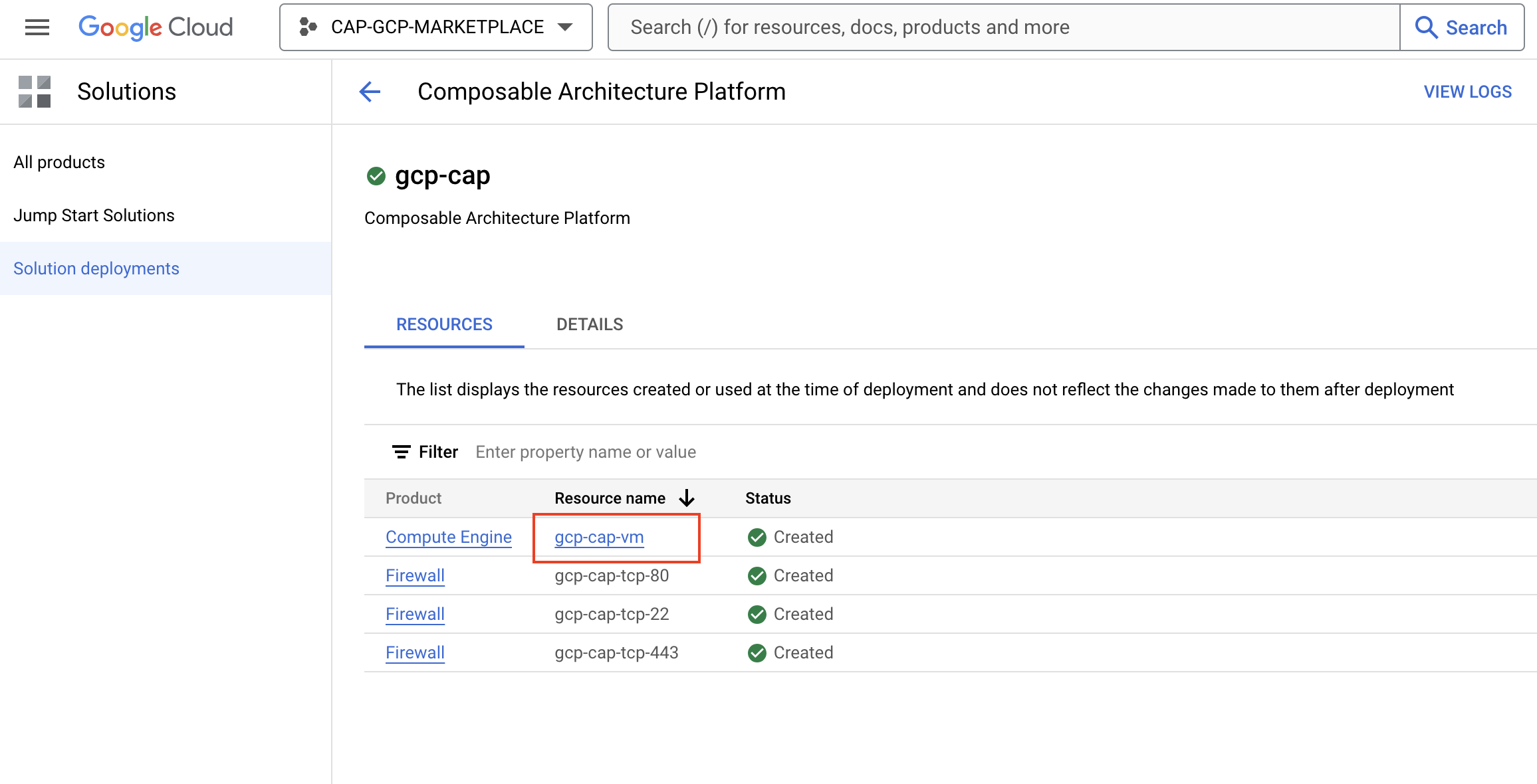
To retrieve the password, select the Resources tab on the Solutions Deployment page, and click on the Compute Engine resource name of the VM instance that has been successfully deployed.

<figure><img src="https://2423451286-files.gitbook.io/~/files/v0/b/gitbook-x-prod.appspot.com/o/spaces%2F42mDa58RoaDxb6t8mbaI%2Fuploads%2Fgit-blob-8b98626f04fb5452640833c943619ea3c6909d65%2Fgcp%20resources.png?alt=media" alt=""><figcaption><p>GCP Resources</p></figcaption></figure>

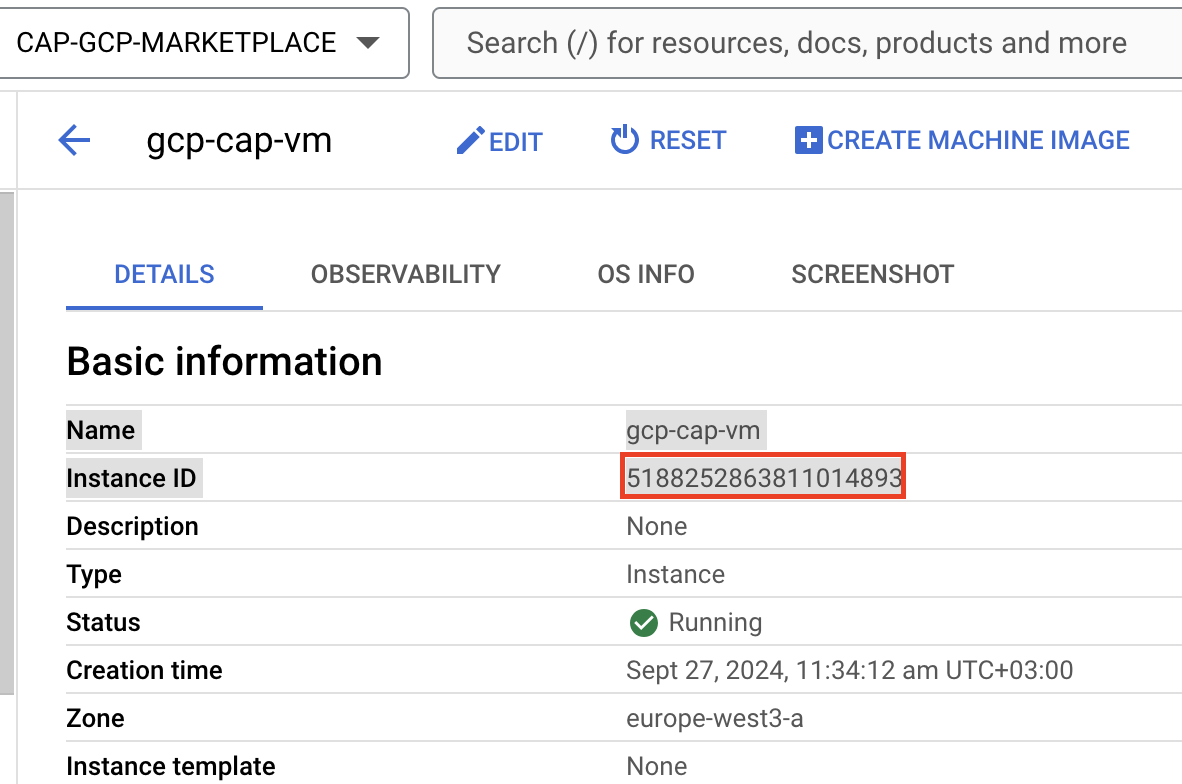
The Compute Engine VM Instances basic information page will open from this link, where you will be able to copy the **Instance ID** value which is used as the unique administrator password for first time login to the CAP console for User ID **gcp-user**.

<figure><img src="https://2423451286-files.gitbook.io/~/files/v0/b/gitbook-x-prod.appspot.com/o/spaces%2F42mDa58RoaDxb6t8mbaI%2Fuploads%2Fgit-blob-4726c424869522dfd1cd9f10530c7b6194dc191a%2Fgcp%20instance%20id.png?alt=media" alt="" width="563"><figcaption></figcaption></figure>

Please refer to the product reference section - [Essential things to do first](https://docs.tomorrowx.com/cap/product-reference/getting-started/essential-things-to-do-first) in order to manage the default accounts and change passwords.

### Connect to instance (SSH) <a href="#toc107424462" id="toc107424462"></a>

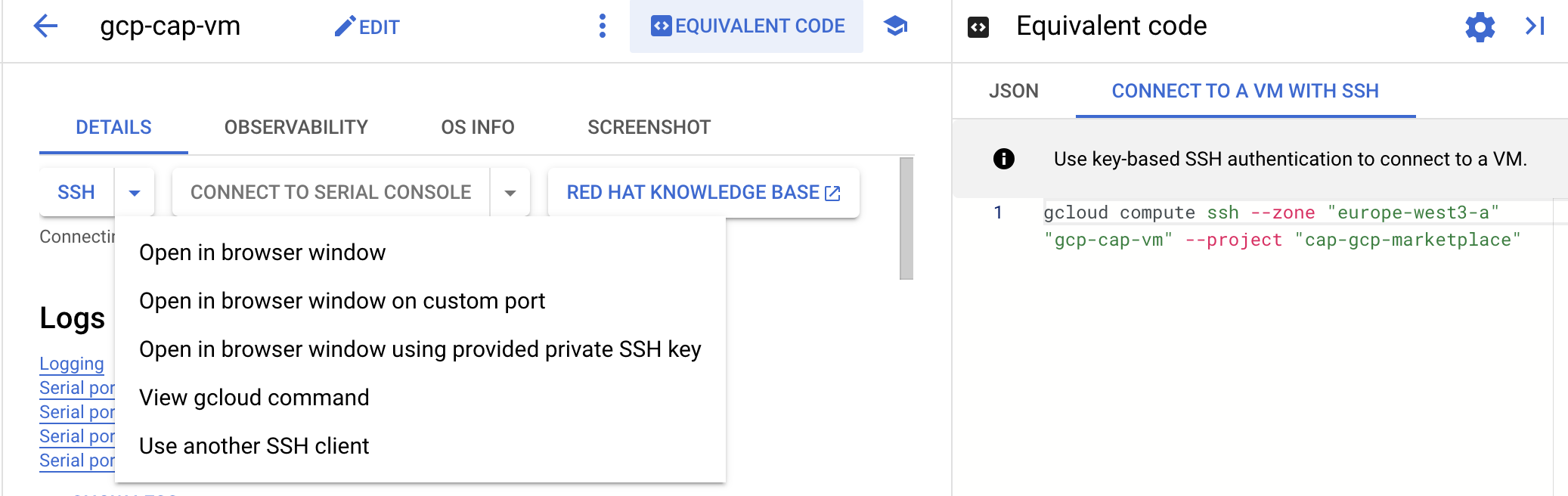
Connect via SSH to the new VM instance via the SSH dropdown options list on the Compute Engine VM Instances basic information page. Read more information about how to connect to Linux virtual machine (VM) instances: [Connect to Linux VMs](https://cloud.google.com/compute/docs/connect/standard-ssh#thirdpartytools)

<figure><img src="https://2423451286-files.gitbook.io/~/files/v0/b/gitbook-x-prod.appspot.com/o/spaces%2F42mDa58RoaDxb6t8mbaI%2Fuploads%2Fgit-blob-4f8b2355b6d14cf1ec74569eb5caa89e221766e9%2FGCP%20ssh.png?alt=media" alt=""><figcaption><p>SSH Connect</p></figcaption></figure>

Example gcloud command:

```
gcloud compute ssh --zone "europe-west3-a" "gcp-cap-vm" --project "cap-gcp-marketplace"
```

Read more: [About Google Cloud SSH Connections](https://cloud.google.com/compute/docs/instances/ssh)

#### Customer Sensitive Data

When the instance has launched, the only sensitive data within the installation is the gcp-user password, that is initially set as the instance ID of the new VM Instance as detailed in Google Cloud Marketplace solution deployments details page. There is no customer sensitive data stored upon initial deployment.

Where PII or PHI sensitive data could be present you should always encrypt the relevant AWS datastore.

All 3rd party or external services that are utilised to store PII or PHI sensitive data should be encrypted.

#### Other Sensitive Data

After the VM instance successfully launches in Google Cloud Compute, CAP will auto-start as a running service callef `tomorrowstart`. When running, it will immediately invoke a token authenticated API GET request to retrieve the metadata instance-id as follows:

`http://metadata.google.internal/computeMetadata/v1/instance/id`

This is the only request made to the Instance Metadata Service, initiated from the VM instance itself, not externally.

The returned instance-id value is used as the unique password to then auto-create the gcp-user credentials, which provides admin console access only to the GCP customer launching the instance. The Google Cloud Marketplace usage instructions then guide the user to the [Essential things to do first](https://docs.tomorrowx.com/cap/product-reference/getting-started/essential-things-to-do-first) section, such as changing user password and setting user access roles post deployment.

## Observability & Monitoring <a href="#toc107424472" id="toc107424472"></a>

### Ops Agent <a href="#toc107424473" id="toc107424473"></a>

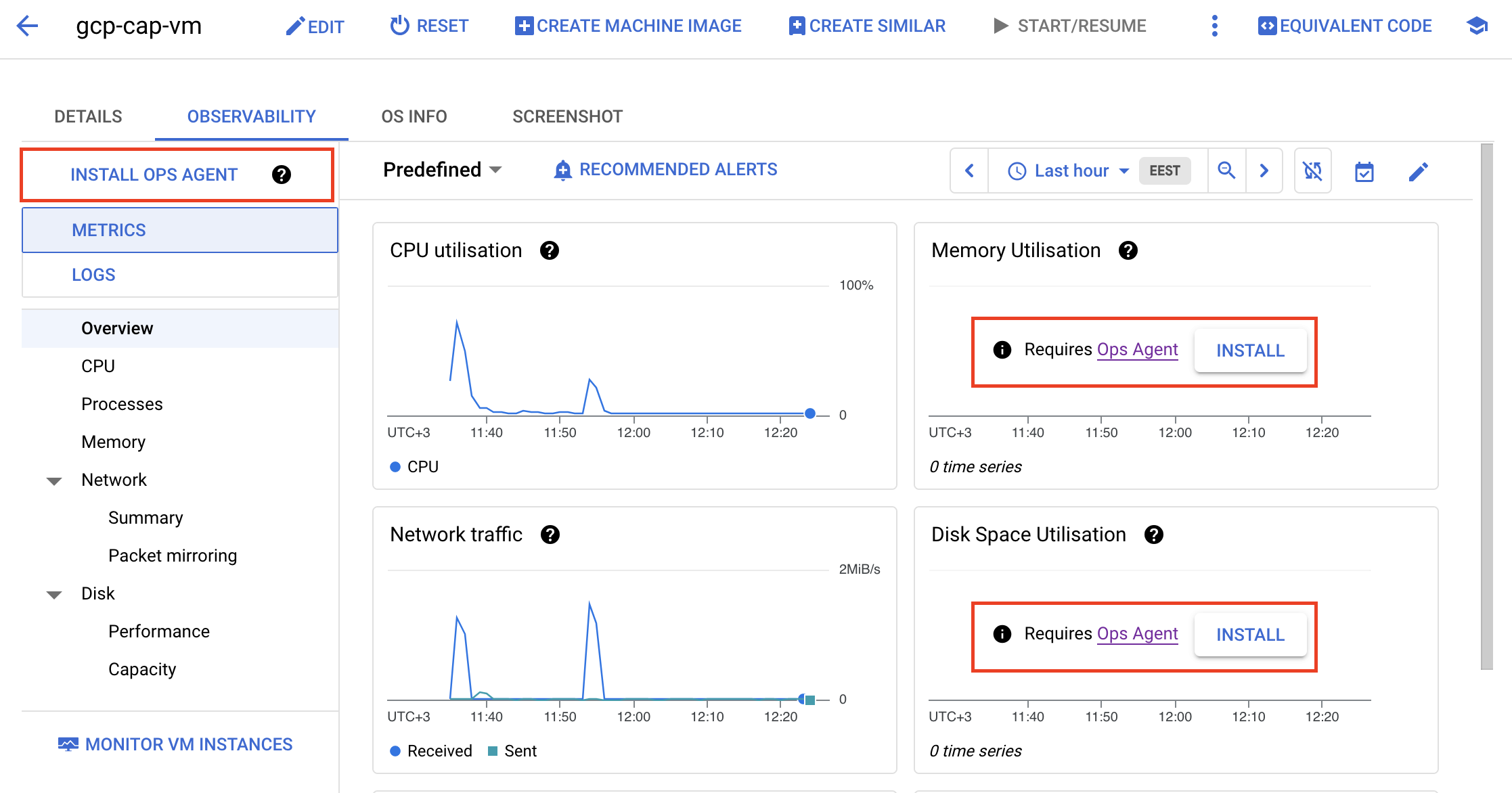
The [Ops Agent](https://cloud.google.com/stackdriver/docs/solutions/agents/ops-agent) is the primary agent for collecting telemetry data from your Compute Engine instances. Combining the collection of logs, metrics, and traces into a single process. Ops Agent is not installed as default as a Marketplace Solution Deployment, if required you will be prompted to install Ops Agent on the observability tab on the Compute Engine VM Instances basic information page to capture and monitor this data for the VM instance.

<figure><img src="https://2423451286-files.gitbook.io/~/files/v0/b/gitbook-x-prod.appspot.com/o/spaces%2F42mDa58RoaDxb6t8mbaI%2Fuploads%2Fgit-blob-bf24f7049927bc43e434e756cc1eb5f96f4e73d7%2Fgcp%20ops%20agent.png?alt=media" alt=""><figcaption><p>Ops Agent</p></figcaption></figure>

{% hint style="info" %}
If you install the Ops Agent, then you might be charged for the metrics, logs, or traces that the agent sends to your Google Cloud project. For pricing information read more [here](https://cloud.google.com/stackdriver/docs/solutions/agents/ops-agent#pricing)
{% endhint %}

## Troubleshooting & Maintenance <a href="#toc107424475" id="toc107424475"></a>

* If the console login window does not load or does not log you in, you can check the log files by accessing the VM instance via SSH and navigating to the following location: `opt/local/Tomorrow/server/logs` - the logs will provide information about the issue preventing proper function.
* If you can successfully log in to the Console, use the **Servers** window to check server health where your solutions are deployed to and run from.
* Navigate to **Administration** -> **Server Definitions** area to correct Server definition and connectivity issues such as port definition, host name, and Server Encryption Key.

The tomorrowstart service restarts will also help restore the service application of both the console and server. You need to SSH connect to the instance to perform service restarts.

To stop the service use:`service tomorrowstart stop`\
To start the service use: `service tomorrowstart start`

It is good practice to routinely update the VM instance with available packages. For example, run the ***​​***`sudo yum update` command as root user to install RHEL patches and updates .

## Backup and Recovery <a href="#toc107424477" id="toc107424477"></a>

CAP contains its own internal data store for storing user data, preferences, and the created solutions. There is no fixed backup strategy in place as part of the Google Cloud Marketplace deployment.

Read more in the section [Backup and Restore](https://docs.tomorrowx.com/cap/product-reference/backup-and-restore)

### Manual Backups <a href="#toc107424479" id="toc107424479"></a>

If you wish to take a manual backup of the CAP installation:

* SSH connect to the VM instance
* Stop the `tomorrowstart` service using the command:

```shell-session
# service tomorrowstart stop
```

* Zip the entire contents of the TomorrowX Platform installation directory. Default installation path is `opt/local/Tomorrow` where `Tomorrow` is the installation directory
* Copy the zip file to the backup target location of choice
* Start the `tomorrowstart` service using the command:

```shell-session
# service tomorrowstart start
```

You can restore this folder to your new VM instance location, ensuring the tomorrowstart service is reinstalled to the new instance whilst respecting hardware configuration of the original installation from where the backup has been taken.

## Google Cloud Customer Care

Basic Support is included for all Google Cloud customers.

[Read more](https://cloud.google.com/support-hub/) about Google Cloud Basic Support or get more information to [Sign up for other Customer Care offerings](https://console.cloud.google.com/support/offerings).